The web client
The web client opens Occamy's remote desktops and terminals in your browser, with nothing to install. This page shows you how to sign in, open a connection, work in a session, share it with others, and tell why a session ended.
How the web client works
The Occamy server, occamyd, serves the web client under /static/,
such as https://occamy.example.com/static/, when its configuration
sets web_client (Configuration). The page lists
the connections that are open to you, each a remote computer reached
over VNC, RDP, SSH or Kubernetes. Opening one starts a session on the
server, which the page shows and sends your input to.
flowchart LR
  owner["Your browser<br/>the owner"] <-- "your input,<br/>the screen" --> session
  guest["Another browser<br/>joined by a share link"] <-- "the screen, and input<br/>if it has control" --> session
  subgraph server["The Occamy server"]
    session["The session"]
  end
  session <-- "VNC, RDP, SSH<br/>or Kubernetes" --> remote["The remote computer"]
The session runs on the server, not in your browser tab, so it outlives your page by a minute (Leave and come back). You are the owner of the sessions you open, and you can let others into one through a share link. To try the web client, start the demo stack of Try Occamy.
Sign in
Open the web client's address, enter your User name and Password, and click Sign in.
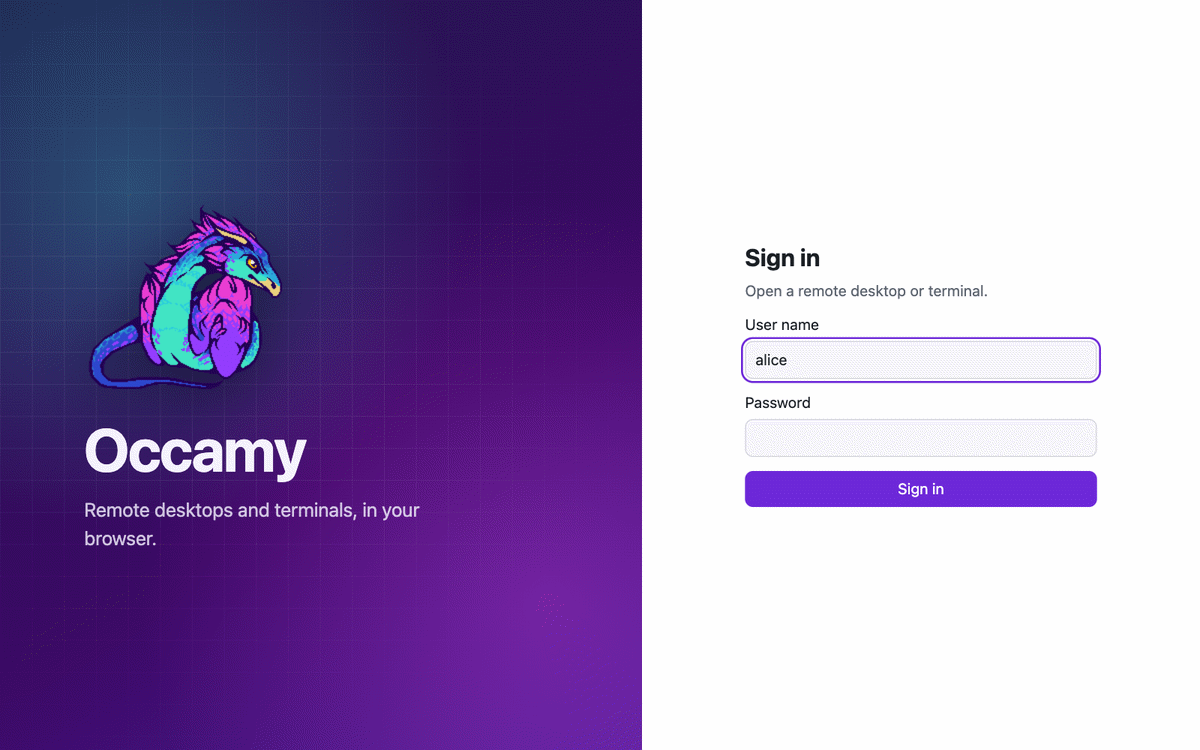
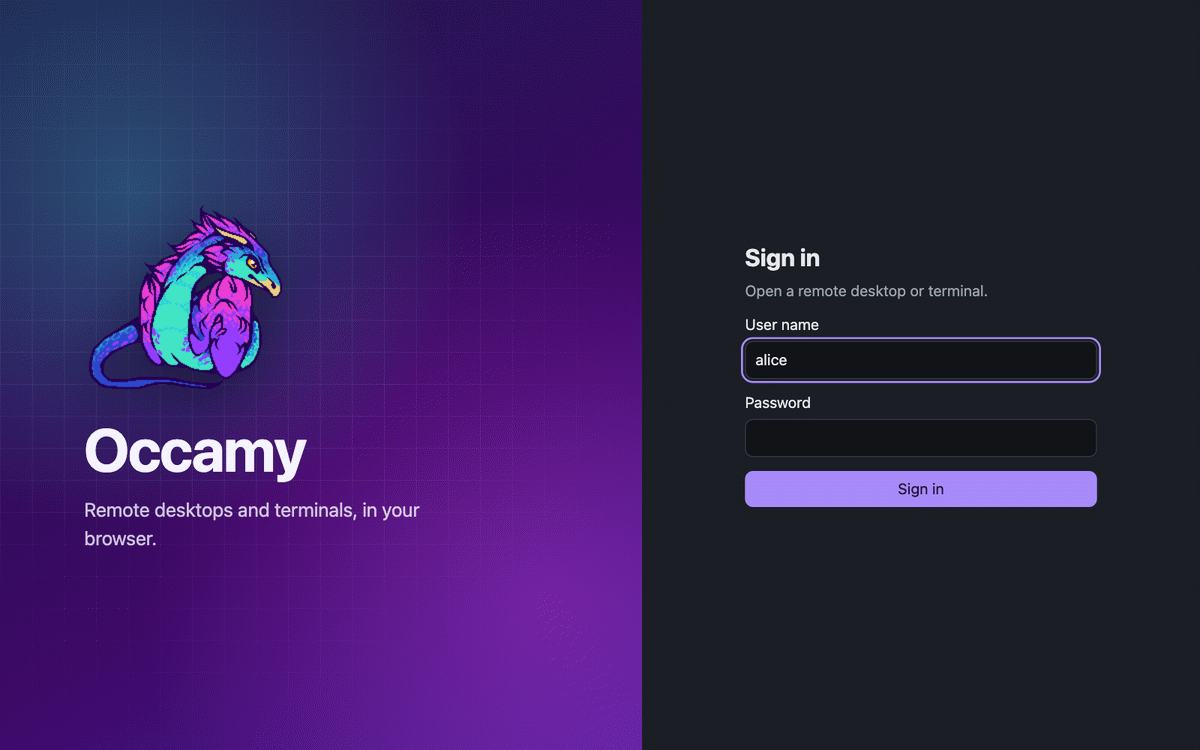
When the server signs users in through an identity provider, the page also offers Sign in with single sign-on, which works only over HTTPS. If it fails, the page says why (Messages).
Your sign-in lasts as long as the page: a new tab or a reload asks you to sign in again, and Sign out, at the top right of the connections, ends it at once. It also expires after 15 minutes by default, while your sessions keep running. When you next do something that needs it, such as sharing, the page asks you to Sign in again over the session, and then carries on. Cancel returns you to the session instead.
Open a connection
Connections lists each connection that is open to you by name and protocol, with its ID when that differs from the name. A screen icon marks a desktop, and a prompt icon a terminal. Refresh loads the list again.
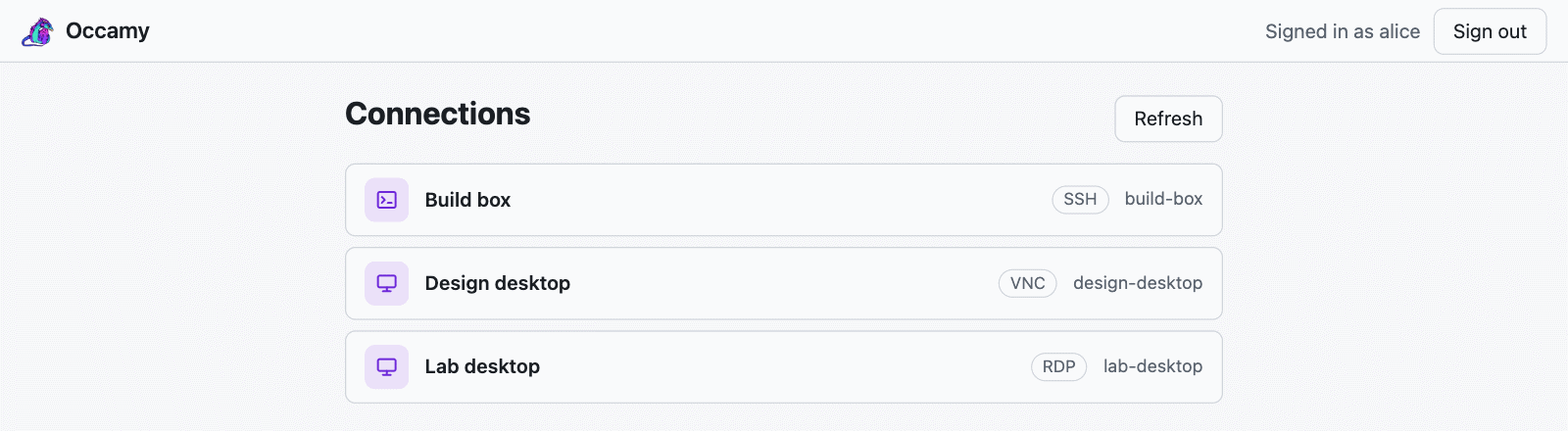
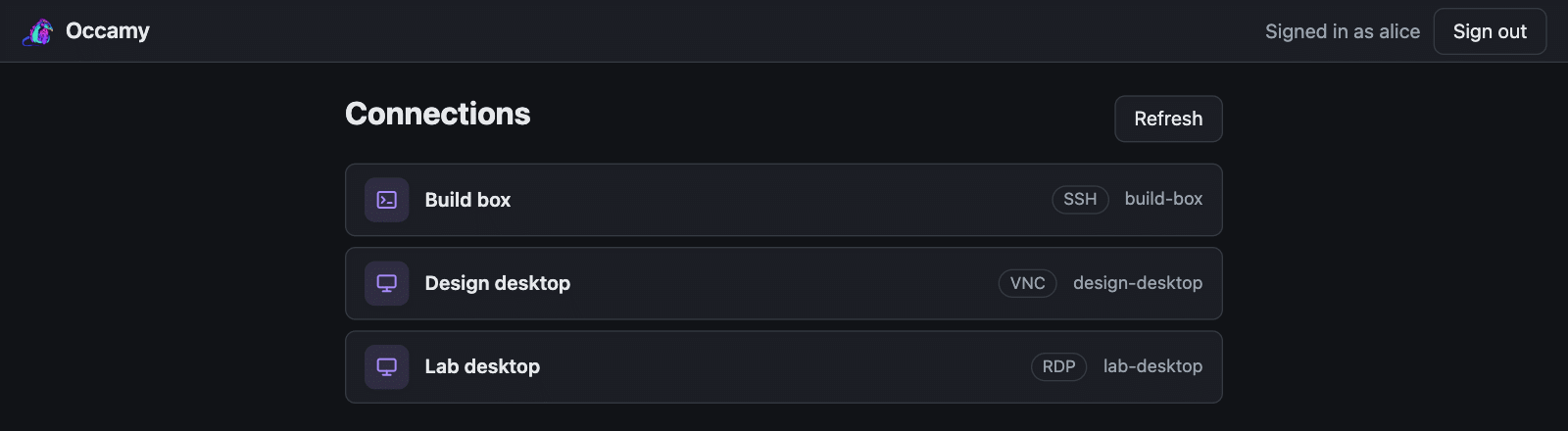
Click a connection to open a session on it: a desktop over VNC or RDP, or a terminal over SSH or Kubernetes. Until the remote's screen arrives, the page says Connecting to and the connection's name, with Cancel. You can own 10 sessions at once by default.
If no connection admits you, the page says "No connections are available to you. Ask the server’s administrator to give you access to one."
Answer the remote's questions
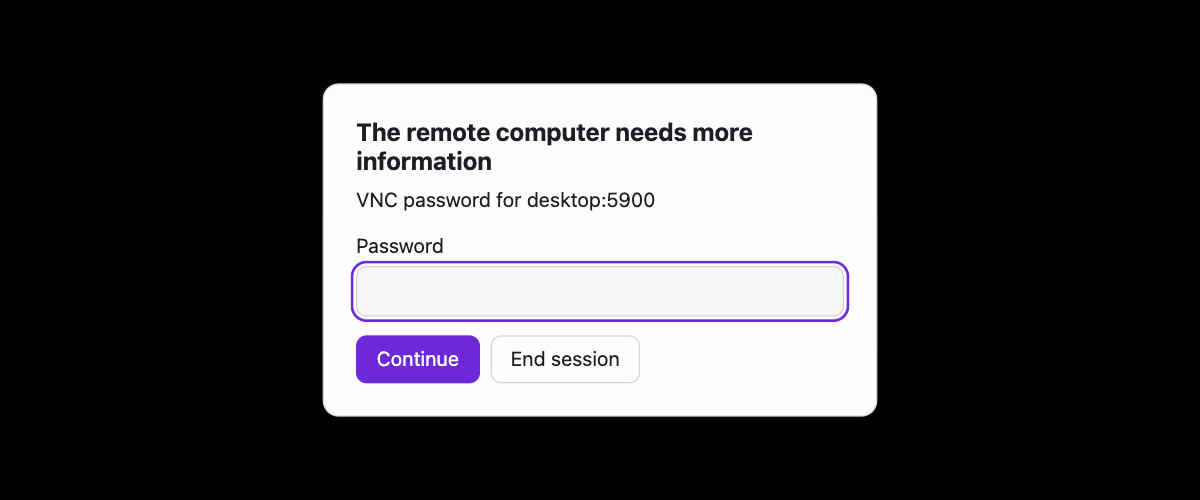
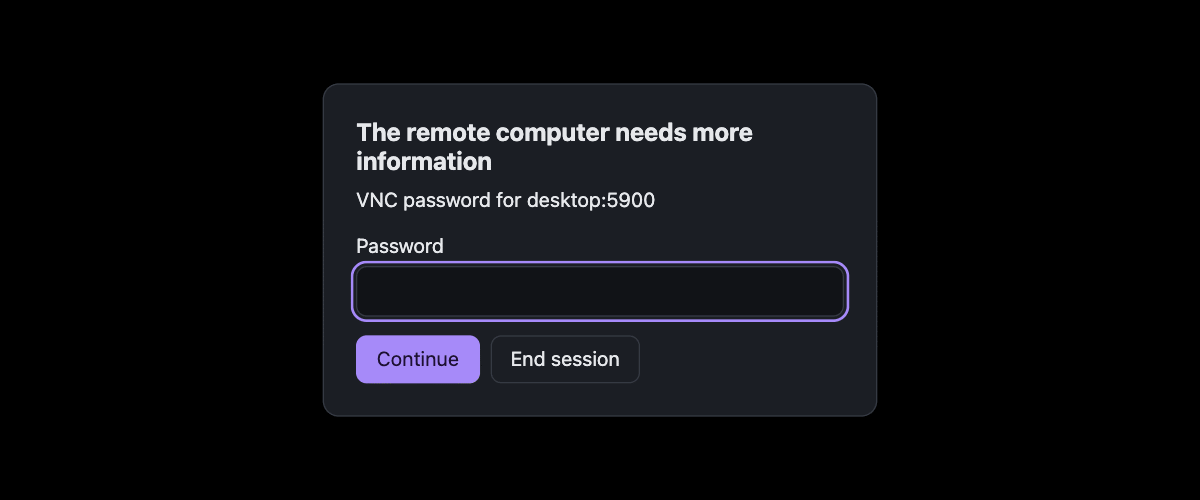
When a connection's configuration holds no password or user name for the remote, the server asks you, the owner, in a dialog headed "The remote computer needs more information", which nobody else sees. Fill in the fields and click Continue, or click End session to give up; the session waits until you do.
Work in a session
A desktop session shows the remote's screen and pointer under a bar of controls, and a bell from the remote flashes the screen.
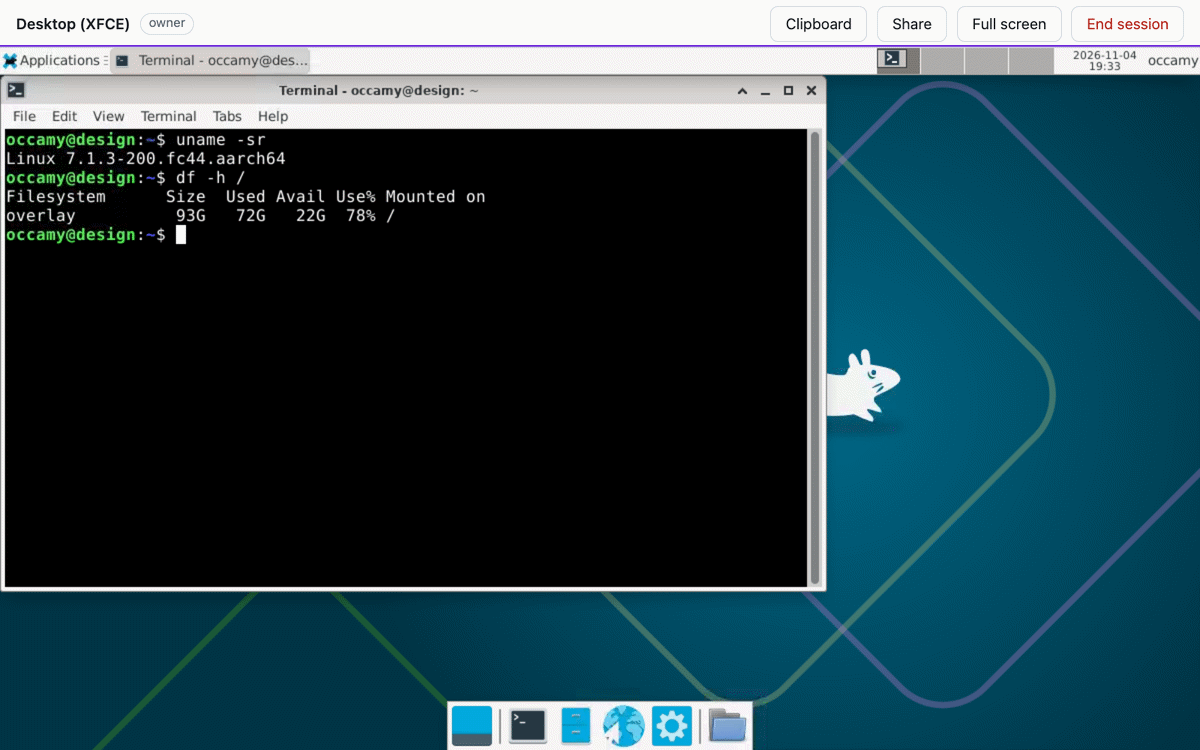
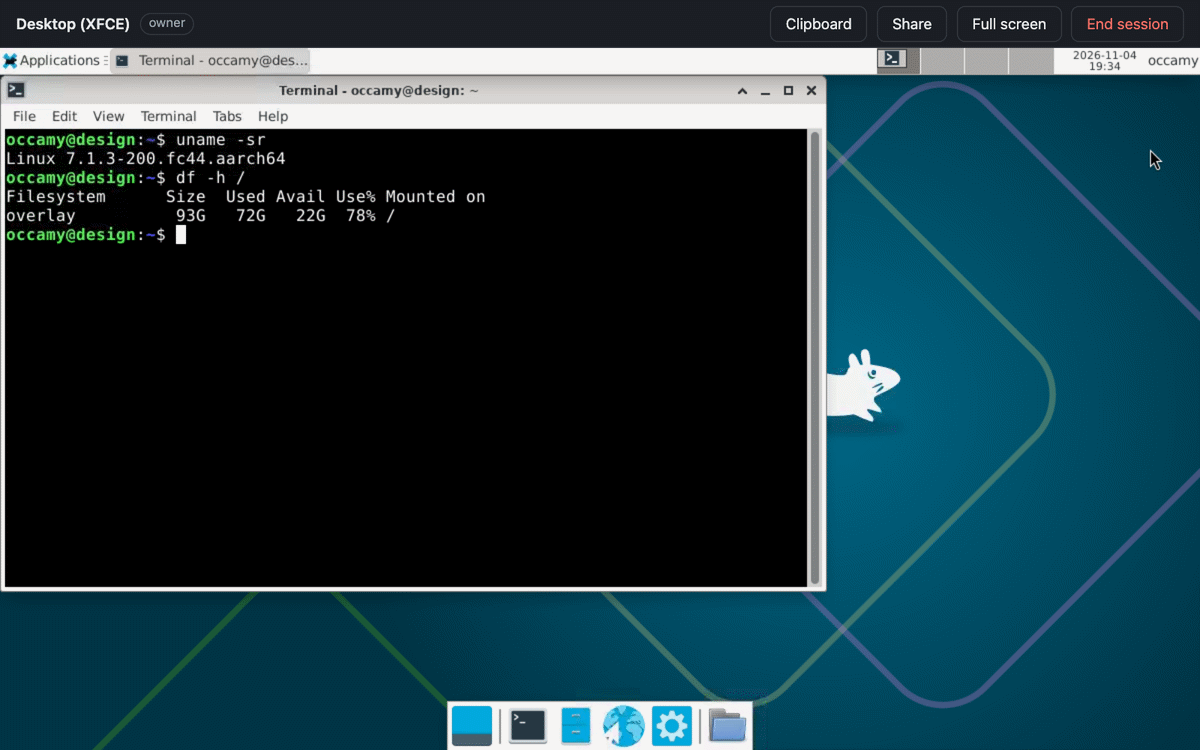
A terminal session shows the remote's terminal under the same bar.
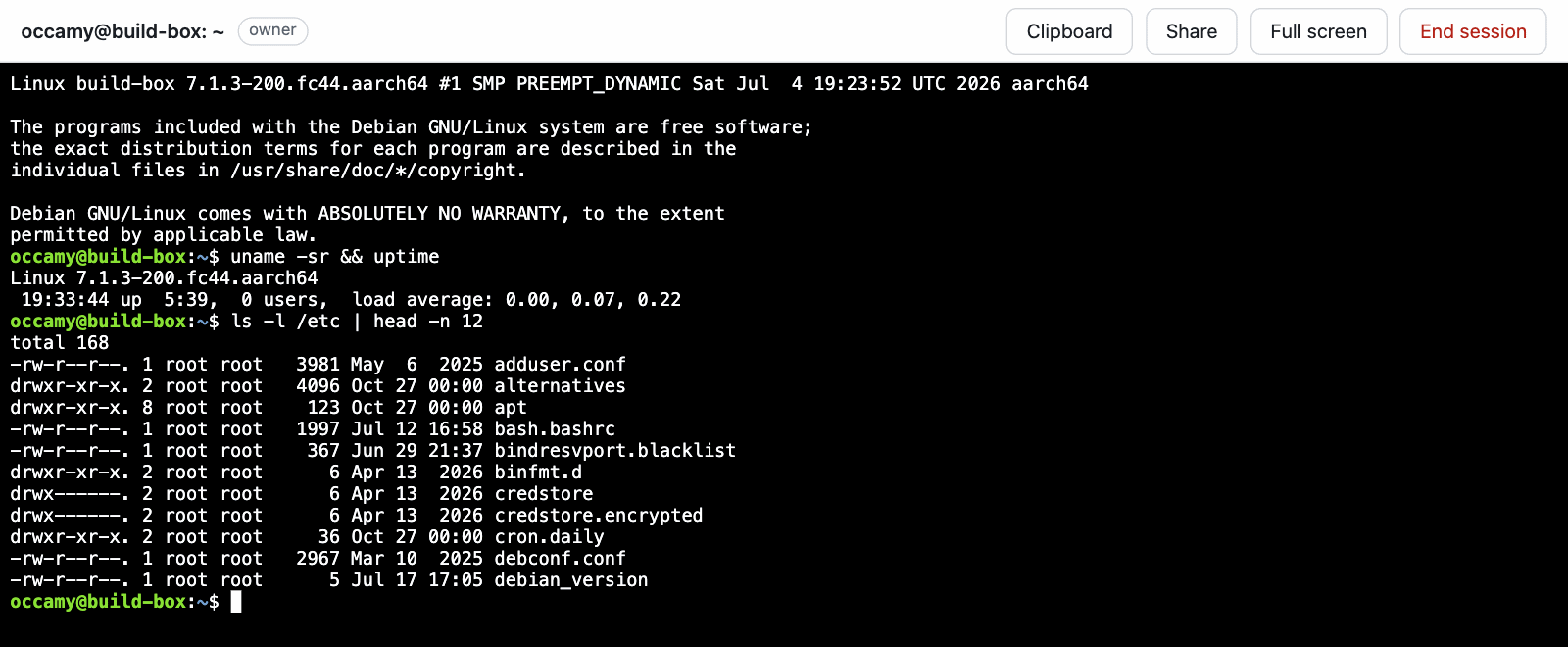
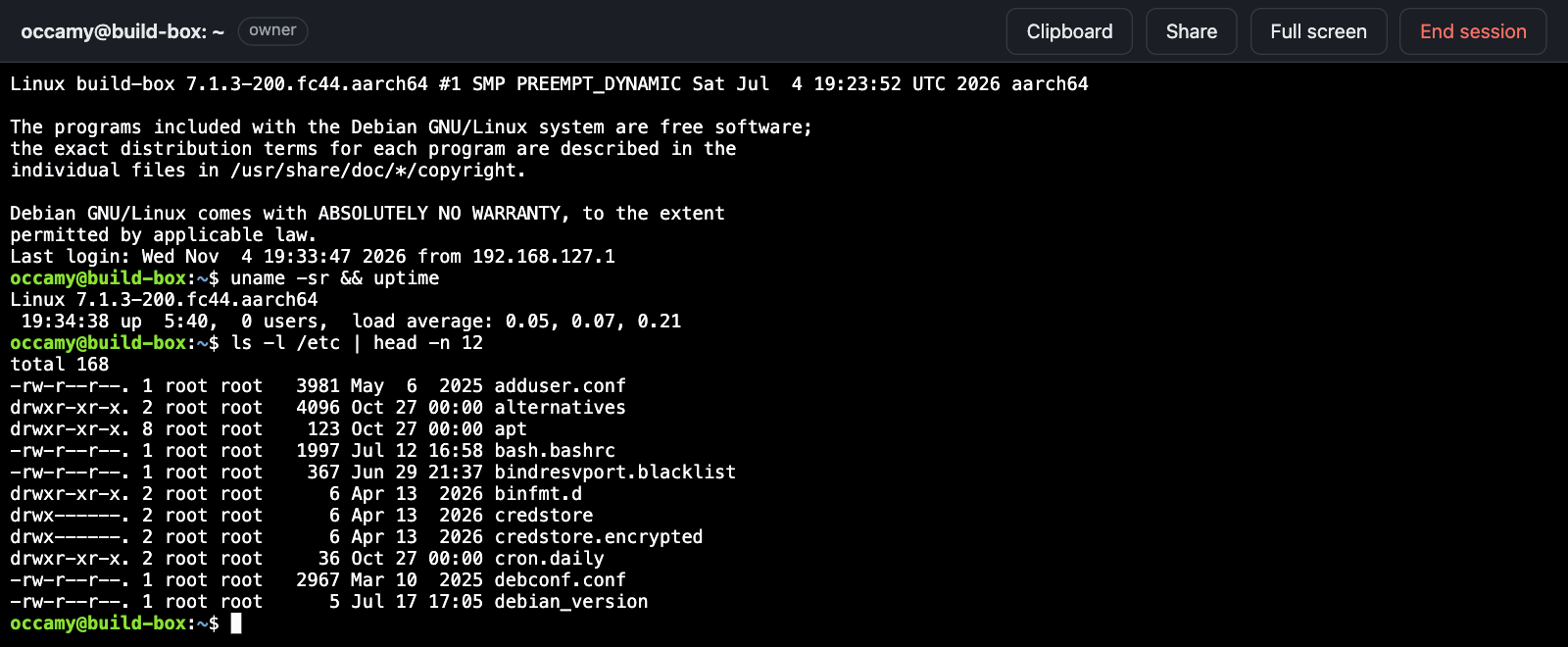
| Item | What it does |
|---|---|
| The title | The remote's title, such as a terminal's, or else the connection's name. The browser tab shows it too |
| The role | owner, with control or view only, as Roles describes |
| 1 other viewer | Appears when others are in the session. Click it to list them by user name, or as Guest when they joined by a link |
| Clipboard | Opens the clipboard panel, as Copy and paste describes |
| Share | Opens the share panel, for the owner, as Share a session describes |
| Full screen | Gives the session the whole screen. Click it again to leave |
| End session | Ends the session for everyone, for the owner, and returns you to the connections. Everyone else sees "Session ended" |
| Leave | Leaves the session, for everyone else. The session goes on without you |
If the server can't end the session, the page says Not ended for everyone and why, and offers Try again.
While the browser tab is hidden, the server sends it nothing, and the
screen catches up when you return to it. If an RDP desktop of a Windows
host stays nearly black, its connection needs disable_gfx: true
(Windows hosts).
Roles
Others join a session through a share link, with control or view only:
| Owner | With control | View only | |
|---|---|---|---|
| Watch the remote | yes | yes | yes |
| Type, point and scroll | yes | yes | no |
| Send to the remote clipboard | yes | yes | no |
| Set the remote's size | yes | no | no |
| Answer the remote's questions | yes | no | no |
| Share and end the session | yes | no | no |
Use the keyboard and pointer
Click the remote's screen to give it the keyboard. Every key then goes to the remote, Tab included, and so do the pointer, right clicks and the wheel. Keys that you still hold when the browser window loses the focus are released on the remote.
| Keys | What they do |
|---|---|
| Control+Alt+Shift, pressed together | Move the focus from the remote's screen to the bar |
| Escape | Close the Clipboard or Share panel, or cancel Sign in again |
| ⌘V on a Mac, or Ctrl+Shift+V | Paste into a terminal session, through the browser |
| ⌘C on a Mac | Copy the text selected in a terminal session |
Each key carries both the character that your keyboard layout gives it and the physical key. RDP servers, and VNC servers that ask for physical keys, apply their own layout to the physical key, and other VNC servers take the character. Text from an input method, such as Japanese, goes to the remote once you have composed it.
Copy and paste
On a desktop, text moves between your clipboard and the remote's by itself:
- From the remote. When the remote's clipboard changes, the page puts its text on your clipboard, if the page has the focus and your role lets you type. A view-only viewer's clipboard is left alone, so that someone else's copy never replaces yours.
- To the remote. When the browser window gets the focus, the page sends your clipboard to the remote, if the browser already lets it read the clipboard; the page never asks. Chrome and Edge let it once you allow it, as when Paste local asks. Firefox and Safari never do, so use the clipboard panel there.
Clipboard in the bar opens the clipboard panel, whose box holds the remote's clipboard text for you to edit and send.
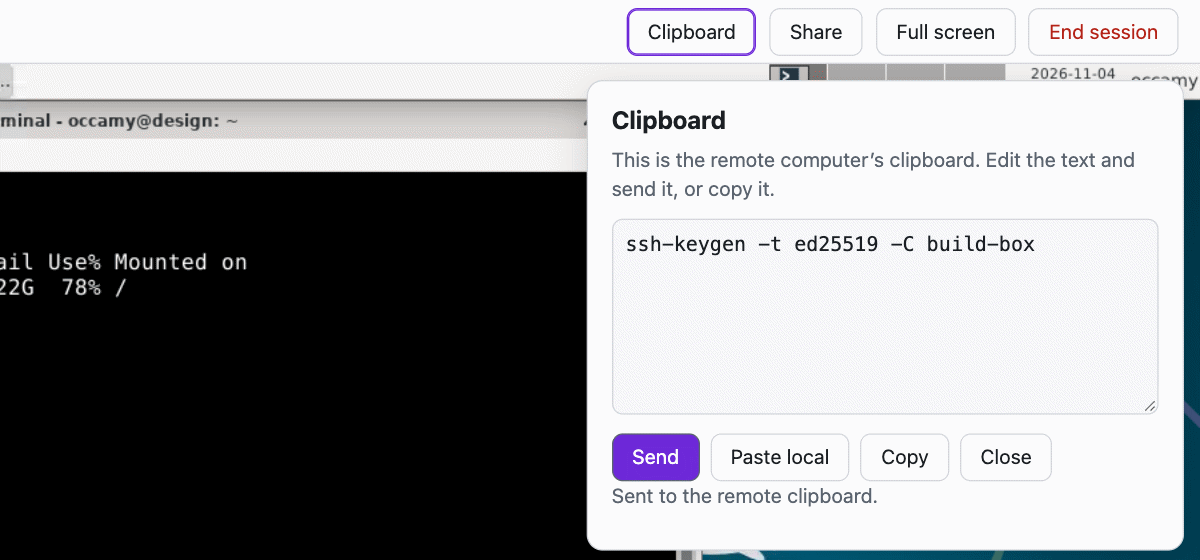
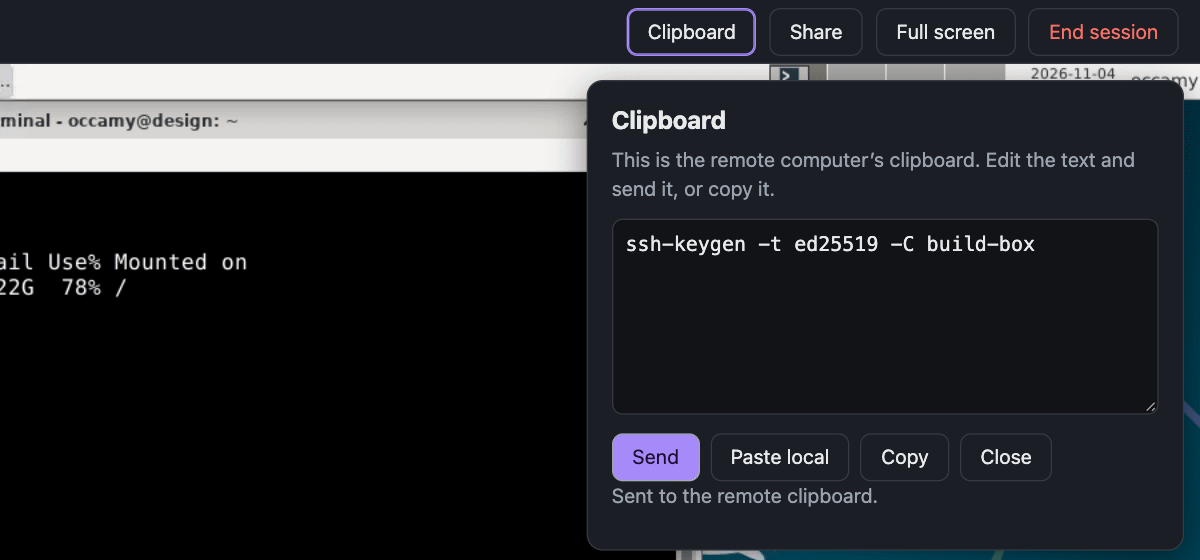
| Button | What it does |
|---|---|
| Send | Puts the box's text on the remote's clipboard |
| Paste local | Fills the box from your clipboard. The browser may ask you first |
| Copy | Puts the box's text on your clipboard |
| Close | Closes the panel, as Escape does |
A view-only viewer can copy the text, but can't send it. After each action, the panel says what became of it (Messages).
When the remote doesn't take your text for a while, the panel and a notice over the desktop, with Dismiss, say so. The text waits until the remote takes it or the session ends. At an RDP logon screen, it waits until you log on (The clipboard doesn't arrive).
A terminal session has no remote clipboard, as its panel says, so you copy and paste through the browser, with the keys in Use the keyboard and pointer, or with Copy in the right-click menu of a selection. Ctrl+C goes to the remote, where it interrupts the program that runs.
A connection's configuration can close the clipboard either way (Close the clipboard).
Share a session
As the owner, you let others into your session through a link:
- Click Share in the bar to open Share this session.
- Under Others join, choose View only: they watch, which is chosen at first, or With control: they also type, point and use the clipboard.
- Under Link expires after, choose 10 minutes, 1 hour, 4 hours or 12 hours. The default is 1 hour.
- Click Create link, then Copy link, and send the link to the people you mean to join.
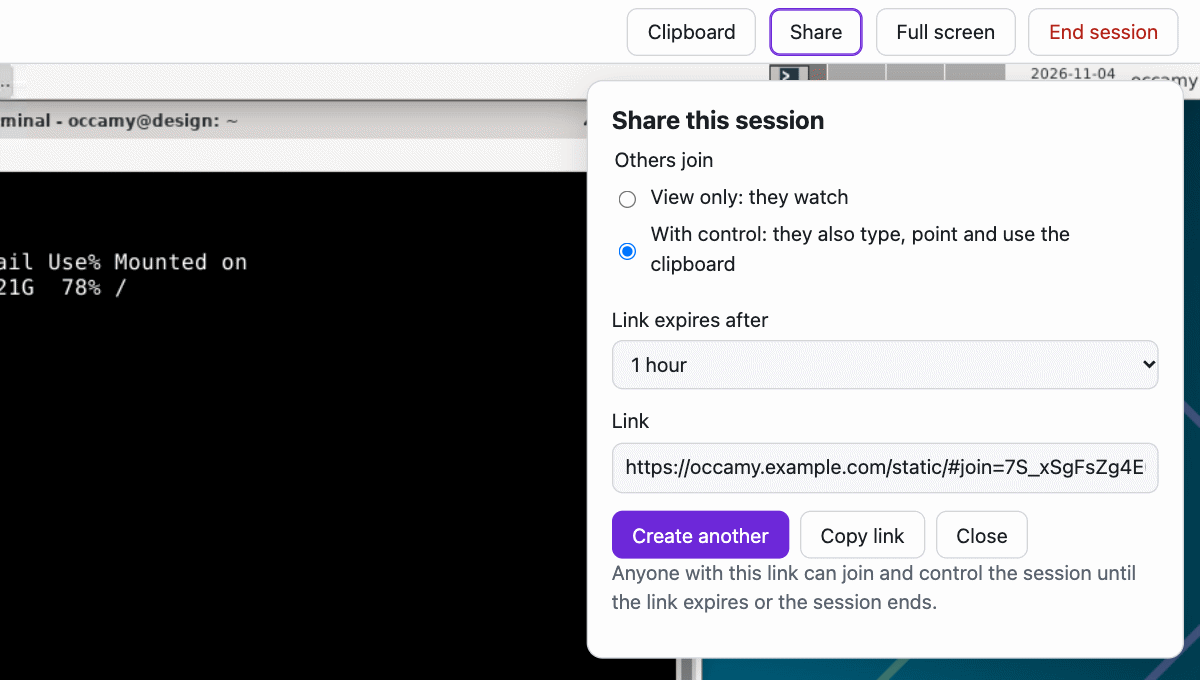
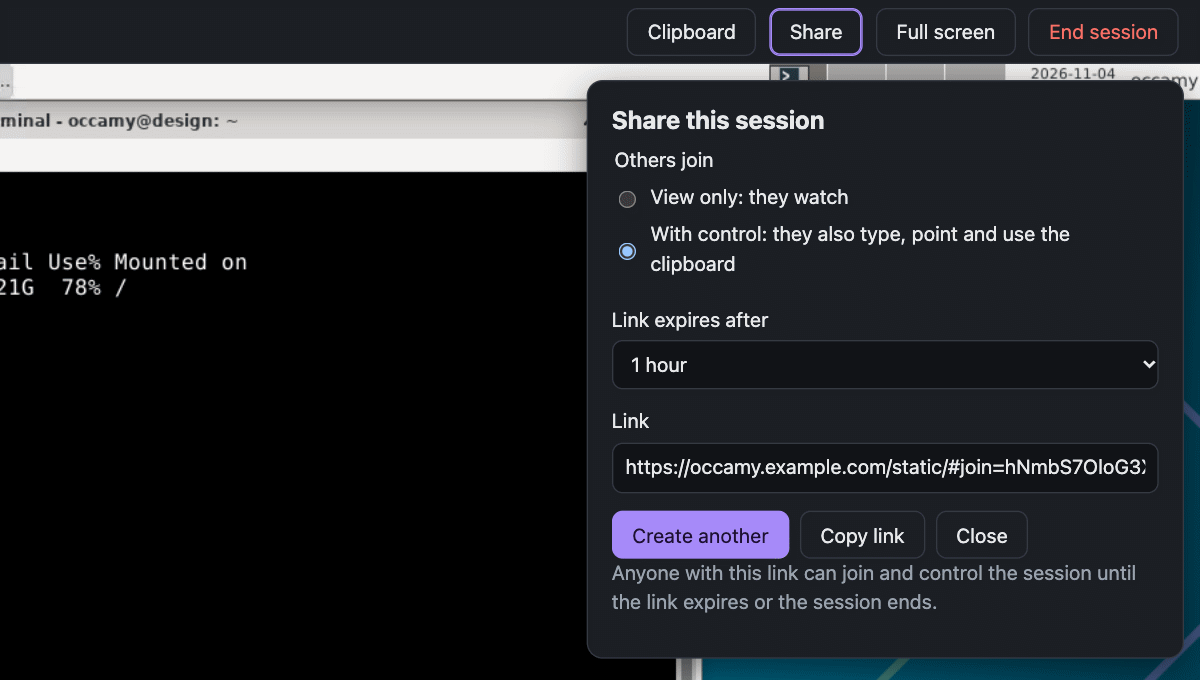
The panel then says what the link allows. If the browser doesn't let the page copy the link, select it in the Link field and copy it yourself. Create another makes a new link with the choices that the panel shows.
Whoever opens the link joins at once, without signing in. Their bar shows their role, and the title "Shared session" until the remote sends a title of its own. Your bar shows 1 other viewer, which lists them as Guest:


A link works this way:
- Anyone who has it can join until it expires, and those who joined stay in the session after that.
- Every link ends with its session. You can't withdraw a single link, so end the session to end them all.
- The link carries the share after
#, which the browser sends to no server. The page removes it from the address bar as it loads, so a viewer who reloads the page needs the link again. - By default, a session takes 50 viewers besides its owner, and 100 links that haven't expired.
Resize the remote
The owner's window sets the remote's size. Once you stop resizing the window, or click Full screen, the page asks the remote for the new size: a desktop that can change its size fills the window, one that can't is scaled to fit and keeps its shape, and a terminal gains or loses rows and columns. Everyone else sees the owner's screen scaled to their own window.
The page asks for the size in CSS pixels, so programs on the remote look as large on a high-density display as on any other, and the owner's browser zoom resizes the remote for everyone: at 50%, the remote gets twice the width and height, and its programs look half as large. Anyone else's zoom only scales their view.
Leave and come back
If you close the tab or lose the network, the session runs on as you left it, and the others keep watching. If you don't come back within 60 seconds, it ends, and the others see "The owner left and didn’t come back in time."
stateDiagram-v2
  direction LR
  [*] --> Running: You open a connection
  Running --> Waiting: Your page closes or loses the network
  Waiting --> Running: You come back within 60 seconds
  Waiting --> Ended: 60 seconds pass
  Running --> Ended: You end it, the remote ends it, or 30 minutes pass without input
Ended --> [*]| How you left | How you come back |
|---|---|
| The page lost the server | The page says "Connection lost". Click Join again |
| You reloaded the page | The page asks you to sign in again, saying "Sign in again to return to" and the connection's name. Sign in within the minute to rejoin, or click Go to the connections instead. When you sign out, the page forgets the session |
| A newer page of yours joined, such as a duplicated tab | The newer page takes the session over, and the older one says "Opened elsewhere". Join again there brings the session back to it |
If the session ended while you were away, less than a minute before, the page says how it ended. After that, it says "Access refused".
When a session ends
When a session ends, the page says why, and what you can do next. Details shows the technical reason, which helps in a bug report.
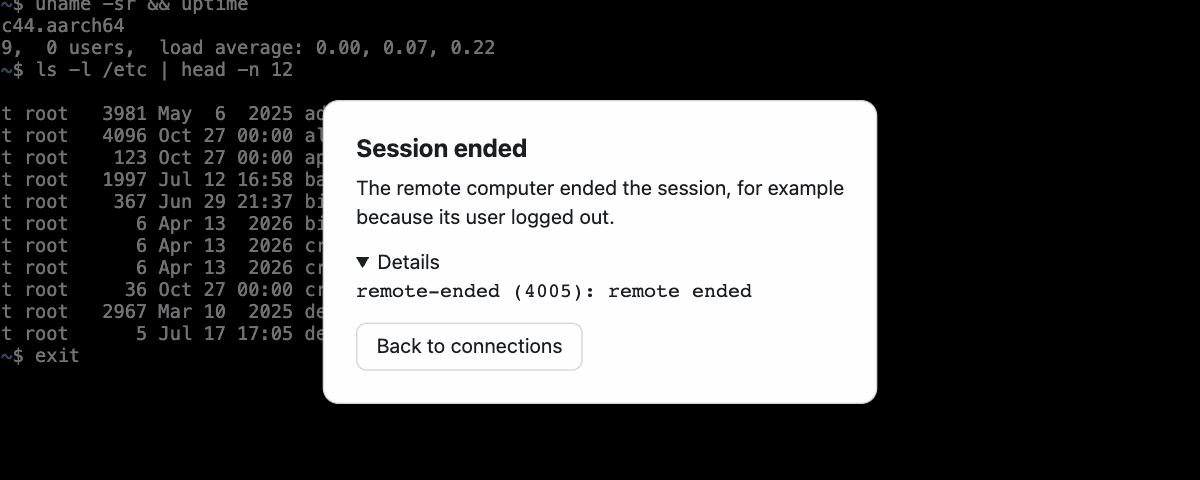
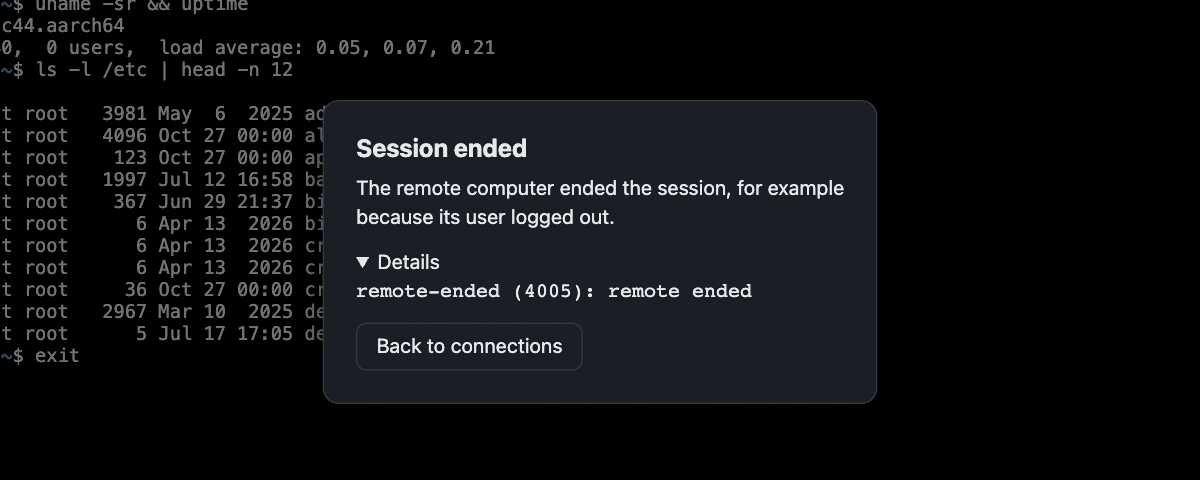
Back to connections returns to the list, or Close for someone who joined by a link. The heading says what happened:
| Heading | What it means |
|---|---|
| Session ended | The owner ended the session, the owner left and didn't come back in time, the remote ended it, as when its user logs out, or the server ran into an internal error |
| Ended for inactivity | Nobody gave input for 30 minutes |
| Could not connect | The server couldn't connect to the remote, and the card says why, such as “The remote computer refused the user name or password.” |
| Remote unreachable | The server lost its connection to the remote, or couldn't connect to it for a reason that only its log shows |
| Connection lost | The page lost its connection to the server. Join again returns to the session if it's still running |
| Disconnected: too slow | The server heard nothing from the page for 30 seconds, or for the viewer timeout that its configuration sets: the network stalled, or the page couldn't keep up. Join again returns to the session |
| Disconnected | The session was closed for another reason, which Details shows |
| Opened elsewhere | Another page of yours took the session over. Join again brings it back |
| Signed out | Your sign-in expired. Sign in signs you in again |
| Link not valid | The share link expired, or its session ended. Ask the owner for a new one |
| Access refused | The connection or the session isn't open to you, the session has ended, or you have as many sessions as the server allows |
| Session full | The session has as many viewers as the server allows, 50 unless its configuration allows another number |
| Server shut down | The server stopped, which ends every session on it. Try again once it's back |
| Protocol error | A bug in the server or in the web client. Report it with the details |
Messages
Single sign-on
If single sign-on fails, the sign-in page shows one of these messages:
| Message | What it means |
|---|---|
| Your identity provider or the server didn’t allow this account to sign in. | The provider refused you, or the server doesn't let you in |
| The identity provider reported an error, or its response couldn’t be verified. Try again. | Something went wrong at the provider |
| The identity provider can’t be reached right now. Try again later. | The server can't reach the provider |
| That sign-in didn’t start in this tab, so it wasn’t used. Sign in again here. | The sign-in came back to a tab that didn't start it |
| The sign-in took too long, or it was already used. Sign in again. | The sign-in expired on its way back, or was used once already |
| Single sign-on works only on a page served over HTTPS. Ask the server’s administrator to serve Occamy over HTTPS. | The page was served over plain HTTP |
| Single sign-on needs session storage, which your browser doesn’t allow for this page. | The browser keeps no session storage for the page, as in some private modes |
| The sign-in failed. Try again. | The sign-in failed for another reason |
Clipboard
The clipboard panel says what became of each action:
| Message | What it means |
|---|---|
| Sent to the remote clipboard. | The text went to the remote |
| Copied. | The box's text is on your clipboard |
| Edited: the remote clipboard holds other text. | The remote's clipboard changed after you edited the box, and your text stays. Show it brings back the remote's text |
| The text wasn’t sent because it’s too large. Send a shorter part of it. | The text stays in the box, so you can send part of it |
| The text wasn’t sent: and a reason | The server or the page refused the text, for the reason given |
| The remote computer hasn’t accepted your clipboard text yet. It will be sent when the remote is ready. | The remote hasn't answered for a while. The text waits, and goes when the remote takes it |
| Your browser didn’t let the page read the clipboard. Paste into the box yourself instead. | The browser keeps the page from reading your clipboard, so Paste local can't fill the box |
| Your browser didn’t let the page copy to the clipboard. Select the text and copy it yourself. | The browser keeps the page from writing to your clipboard, so Copy can't put the text there |
| The remote clipboard isn’t available to you. | Your role can't send to the remote's clipboard, or the session has ended |